 Kitty Launcher
Install & first launch
Download Kitty Launcher, unzip it, drag it to Applications and open it. A cat appears in your menu bar: click it, or press ⌃⌥⌘K from anywhere, to open the launcher. You can change that shortcut in Settings, and turn on starting at login there too.
Projects from Kitty Launcher 1 are imported automatically the first time it opens. There’s nothing to back up or copy over.
macOS asks for a few permissions along the way, each only when a feature first needs it:
| Permission | What it’s for | When it’s asked |
|---|---|---|
| Notifications | Results of launches and closes | First launch |
| Accessibility | Seeing which windows belong to a project: the open status, Close and window layouts | The first time you close a project or save a layout |
| Microphone + Speech Recognition | Hold-to-talk, recognised on your Mac | The first time you hold the shortcut to talk |
Without Accessibility, Kitty Launcher still launches everything; it just can’t see or close windows.
Your first workspace
A workspace is everything one project needs: the apps, files, folders, servers and commands to open, in order. The quickest way to make one is New from Folder, or from the terminal:
cd ~/Projects/my-app
kitty add .
Kitty Launcher looks at the folder and picks a template:
- A Unity project opens in its exact editor version.
- An npm app gets its dev server and port.
- A git repo gets a safe pull, only when there are no local changes.
Or start blank and add your own steps. Each workspace can also have a name, icon, colour and its own keyboard shortcut.
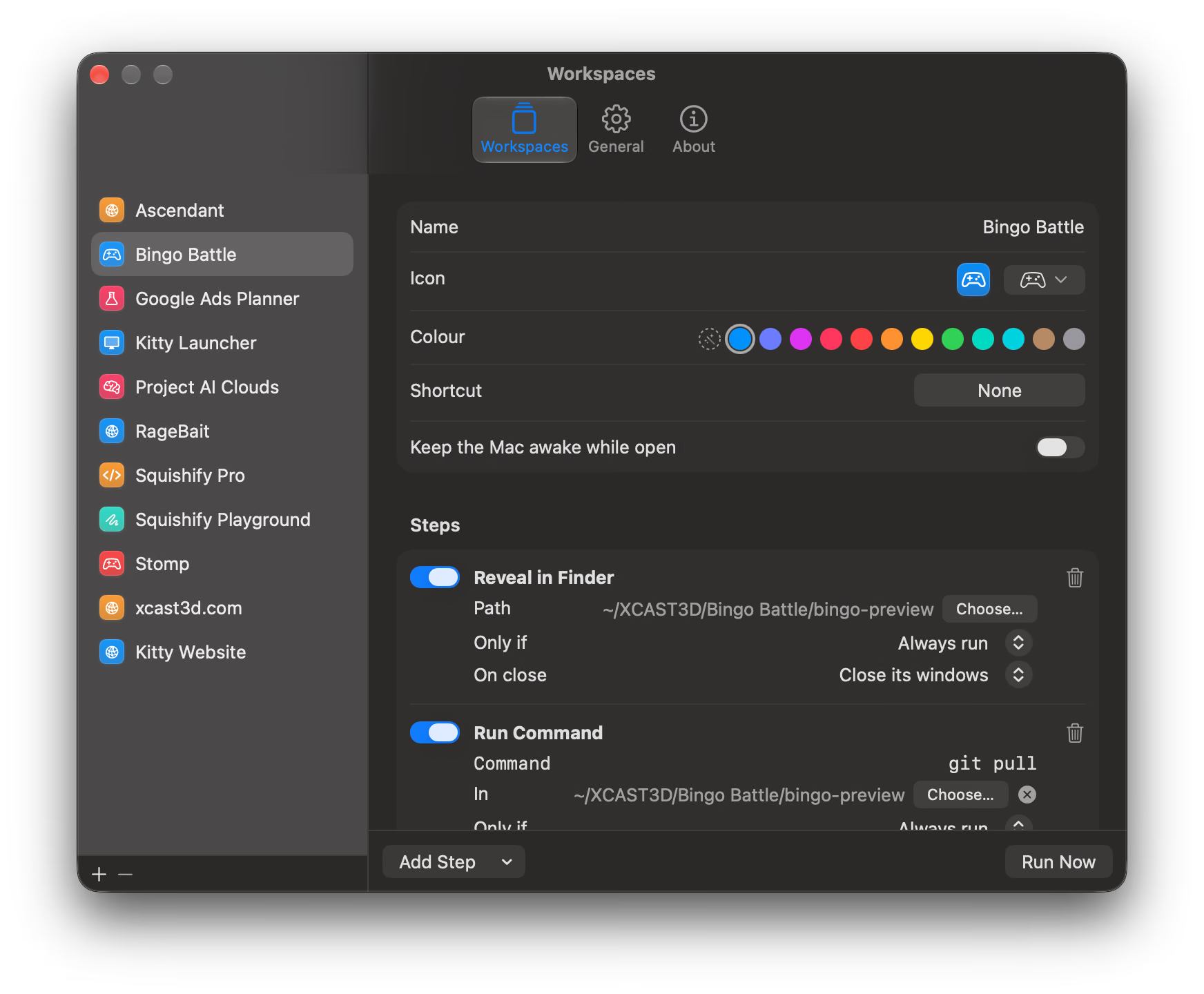
Steps
Steps run top to bottom when you launch. Any app works, so there’s no list of supported editors: if it can open a folder or file, it can be a step.
| Step | For example |
|---|---|
| Open app | VS Code, Cursor or Xcode on the project folder |
| Open file or folder | Your notes, a design file, the assets folder |
| Reveal in Finder | The project folder, in its own Finder window |
| Open URL | http://localhost:5173 in a specific browser |
| Run command | npm run dev in the background |
| Run in Terminal | docker compose up in a terminal tab you can watch |
| Run Shortcut | Any Apple Shortcut, like setting a Focus mode |
| Wait for | A port to answer, an app to open, a command to succeed or a path to exist |
| Pause | A few seconds before the next step |
| Open latest file | The highest version in a folder, like scene_v012.blend |
| Quit apps | Mail, Slack or a GPU-hungry app |
| Set audio | Your interface as output and input, at 48 kHz |
A typical web project: pull the repo, start the dev server, wait for its port, then open the browser. The browser never opens on an error page.
Only-if rules
Any step can be limited with Only if, so it runs only when it makes sense:
- The repo is clean: no uncommitted changes.
- A port is free: nothing is listening on it yet.
- An app isn’t running.
- A path exists, or is missing.
The classic example is a safe pull: git pull only if the repo is clean, so it never trips over work in progress. Pair “port is free” with your dev server and relaunching a project won’t start a second copy.
Launch, close & switch
Open the launcher and start typing; search matches loosely, so a few letters are enough. View All lists every workspace instead.
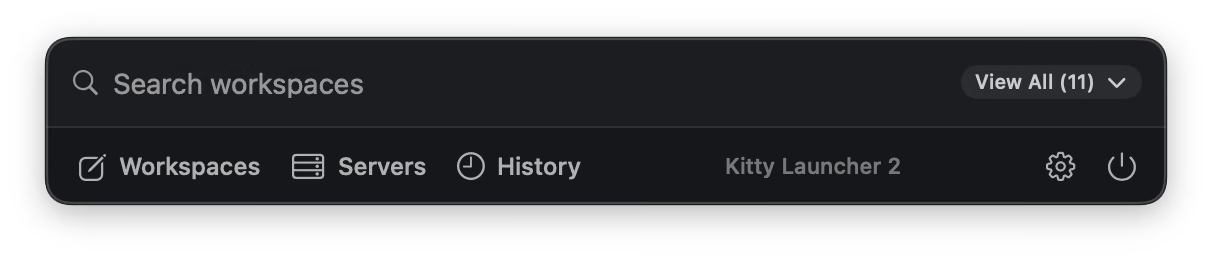
Then:
| ↵ | Launch the project. If it’s already open, bring all its windows to the front. |
| ⌥↵ | Switch to it: close whatever else is open, then launch this. |
| ⌘K | More actions, like Close, Edit and Save Layout. |
| ⌘1–⌘9 | Jump straight to a project. |
While a project is open, the launcher shows how long it’s been open, its dev servers and its git status.
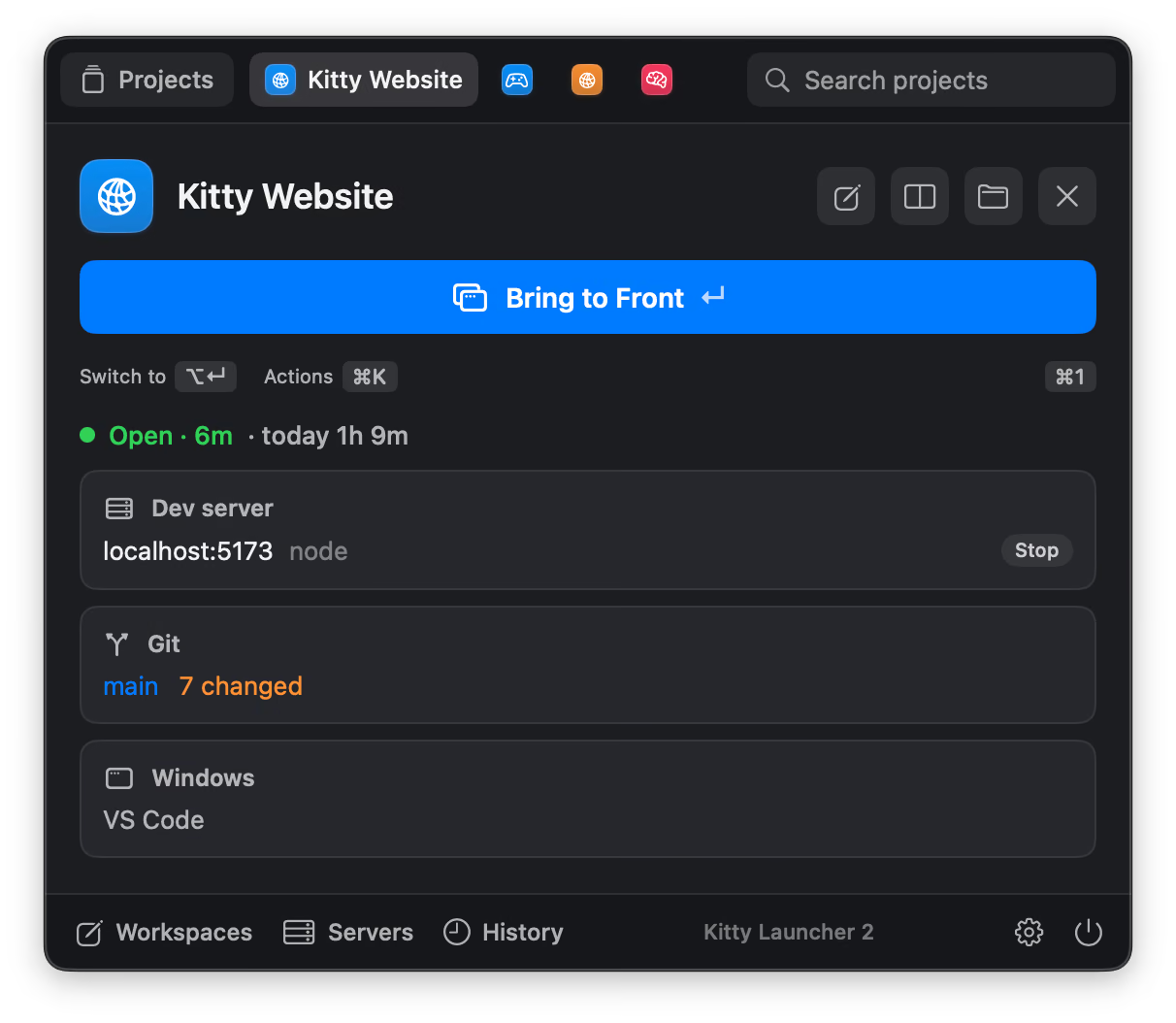
What Close does
Close ends a project without touching anything else. Each step has an On close setting, for example closing its windows, quitting the app or leaving it alone. Then:
- Only windows showing that project’s folders close, plus apps the project opened on its own. Your other projects in the same app stay open.
- Its dev servers stop.
- Its close command runs, if you’ve set one, like
docker compose down.
Dev servers & ports
The Servers view lists every dev server your projects started, grouped by project, with its port and how long it’s been running. Open it in the browser or stop it right there. Turn on All ports to see everything else listening on your Mac too.
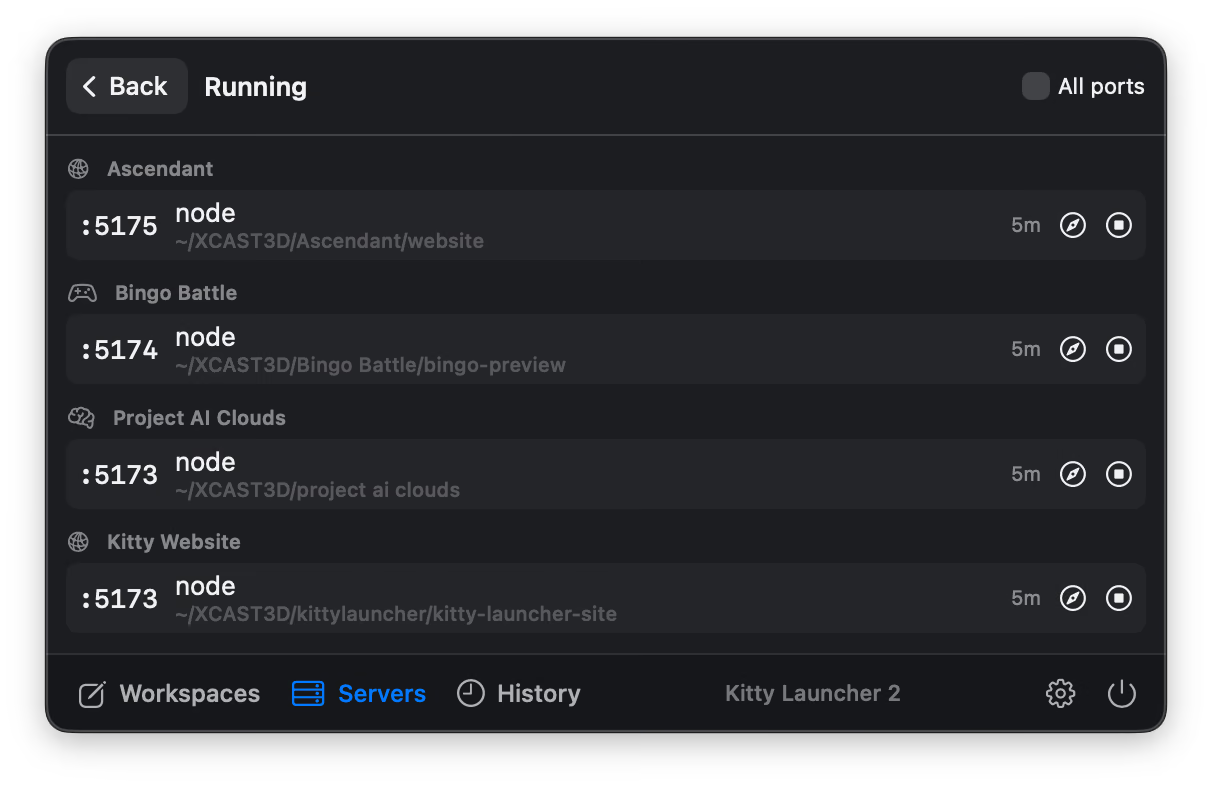
If a project’s port is already taken when you launch, Kitty Launcher tells you before it starts another copy. From the terminal:
kitty ports          # your projects' servers
kitty ports --all    # everything listening
kitty stop 3000      # stop whatever is on :3000
Window layouts
Arrange a project’s windows the way you like them, then choose Save Layout. Every launch puts them back. To forget a layout, clear it from the same place.
Keep awake, audio & focus
- Keep the Mac awake while open: a per-workspace switch. Your Mac stays awake only while that project is open, for renders, bakes, long builds or servers.
- Set audio: pick the output and input devices and the sample rate, so your interface is ready every time.
- Quit apps: close distractions, or anything hogging the GPU, as the project opens.
Keyboard, voice & links
- Keyboard shortcuts: one global shortcut opens the launcher, and any workspace can have its own shortcut to launch it directly.
- Hold-to-talk: hold the shortcut and say a project’s name, “close Stomp” or “switch to Stomp”. Speech recognition stays on your Mac.
- Links:
kittylauncher://links work from anywhere that can open a URL.
kittylauncher://launch/Stomp
kittylauncher://close/Stomp
kittylauncher://switch/Stomp
kittylauncher://show
Use them as a Raycast Quicklink or an Alfred custom search, behind a Stream Deck button, or in your own scripts.
The kitty command
Install it from Settings → General → Command-Line Tool. It comes with tab completion for zsh, fish and bash. Project names match loosely, just like in the launcher.
kitty stomp                 launch, with per-step output
kitty close stomp           stop its servers, close its windows
kitty switch stomp          close the others, then launch
kitty status                what's open right now
kitty list                  workspaces, steps and git status
kitty add [folder]          new workspace from a folder
kitty ports [--all]         running dev servers
kitty stop 3000             stop whatever listens on a port
kitty log [--week|--csv]    time spent per workspace
kitty export stomp          save a shareable Stomp.kitty
kitty import file.kitty     add a shared workspace
kitty check                 check workspaces.json for mistakes
kitty agent-guide           everything an AI agent needs to know
If the kitty terminal is already installed, the command is called kl instead, so the two don’t clash.
Set up with an AI agent
Your workspaces live in one plain file, and Kitty Launcher reloads it the moment anything changes it. That means Claude Code, Codex or any AI agent that can use the terminal can set up and edit your workspaces for you, while Kitty Launcher keeps running.
Install the kitty command first, then start your agent with something like:
Run `kitty agent-guide` and read it. Then make me a workspace
for this folder that opens VS Code and starts the dev server.
kitty agent-guide prints everything an agent needs: the file format, every step type and condition, and recipes for common setups. kitty check validates the file and points at the exact mistake, and a broken edit is never saved over your workspaces.
Things to ask for
- “Make me a workspace for this folder.”
- “Give every web project its own dev server port.”
- “Keep my Mac awake while Stomp is open.”
- “When I open Album, switch to my Scarlett at 48 kHz and open the latest Ableton set.”
- “Run
docker compose downwhen I close the API project.”
One thing to keep in mind: a workspace runs commands, so review what an agent added before you launch it. kitty list shows every step.
Time log
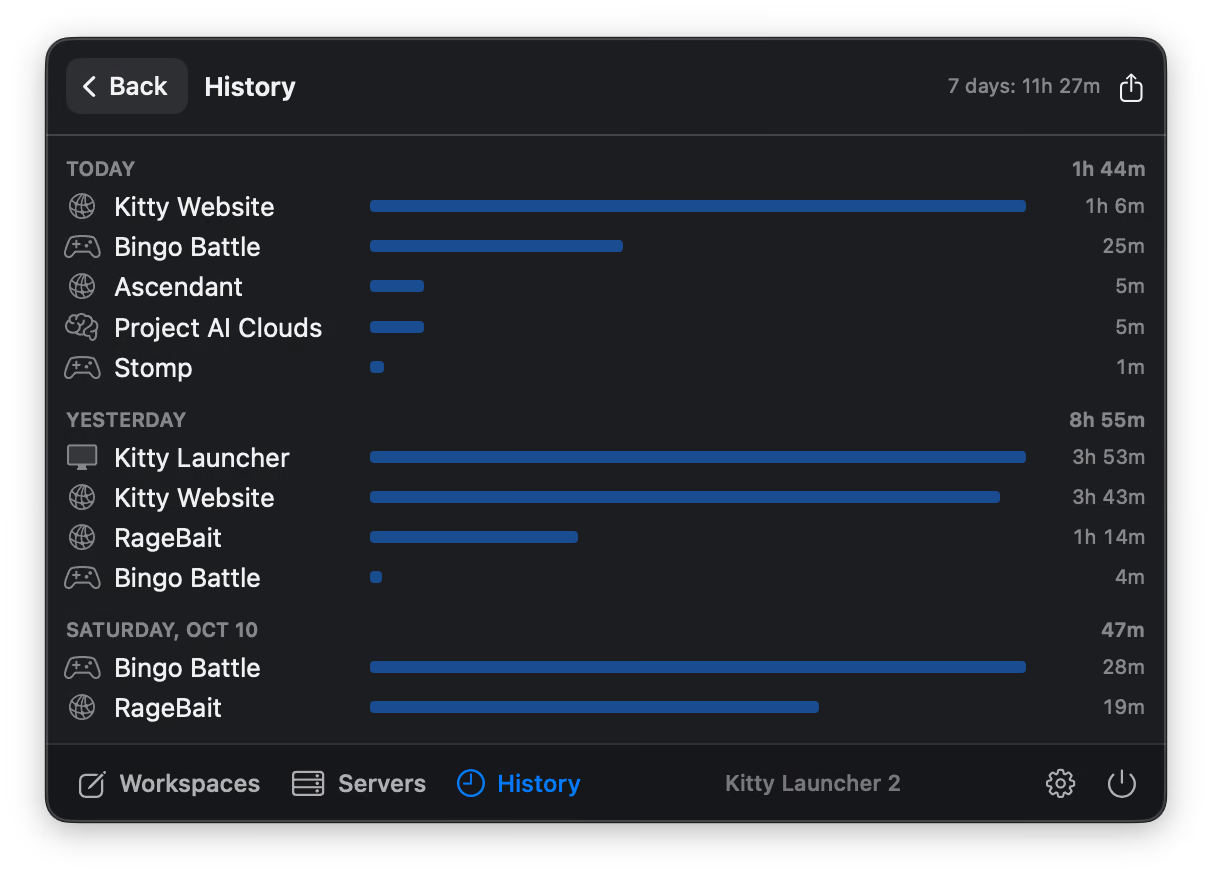
Kitty Launcher keeps track of how long each project is open, per day. It pauses while your Mac sleeps or is locked, so the numbers stay honest. The History view shows the last week, and you can export it as CSV for invoicing.
kitty log --week
kitty log --csv > hours.csvTroubleshooting
It keeps asking me to allow Accessibility
Open System Settings → Privacy & Security → Accessibility and make sure Kitty Launcher is switched on. If it already is, switch it off and on again; macOS sometimes needs that after an update.
A project shows as open when it isn’t
Kitty Launcher counts any window showing the project’s folders as part of it, and that includes Finder windows. A Finder window left open from a Reveal in Finder step keeps the project open. Close that window, or close the project.
The command is called kl
That happens when the kitty terminal already owns the name kitty. Everything else works the same.
Where is my data?
Everything lives in ~/Library/Application Support/KittyLauncher/:
workspaces.json: your workspaces. It’s readable and you can edit it by hand, or let an AI agent do it. Kitty Launcher picks up changes straight away, never saves over a broken edit, andkitty checkpoints at any mistake.sessions.json: the time log.status.json: what was open last, forkitty status.
Still stuck?
Email [email protected]. It’s a one-person project, so replies can take a little while.